Published on: 2025-09-15
One of MT4's standout strengths is its breadth of analytical tools.
The platform provides interactive charting, nine distinct timeframes, 23 analytical objects and 30 built-in technical indicators.
Traders can go a step further by downloading additional indicators from the Code Base, or even programming bespoke ones in MQL4. giving MT4 exceptional flexibility and analytical depth.
Technical indicators use price and volume data to interpret market behaviour and identify potential trends. MT4 comes equipped with a rich selection of indicators, offering traders reliable guidance in their decision-making.
To add an indicator, simply go to the Insert menu on the main toolbar and select Indicators. The full range will appear, grouped into trend indicators, oscillators, and volume-based (price–volume) indicators.
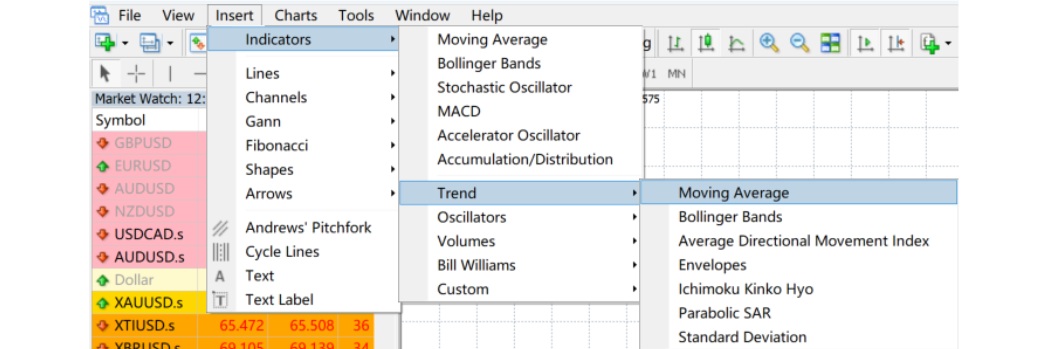
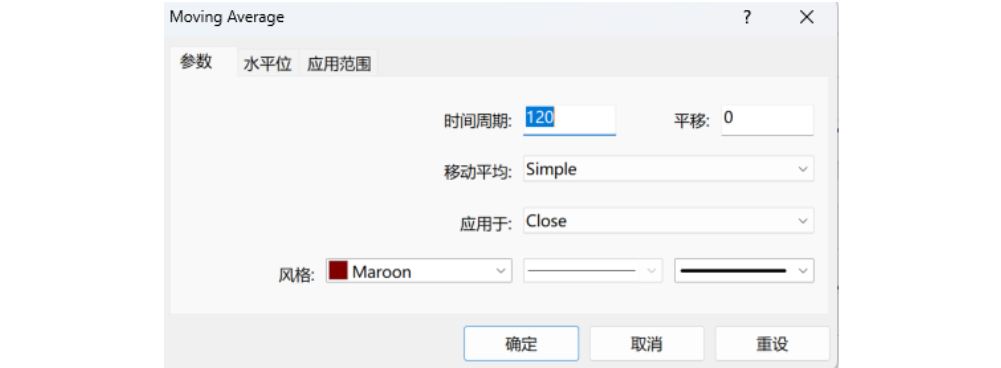
For instance, if you select a moving average and set it to 120 days, it will instantly appear on your main MT4 chart.
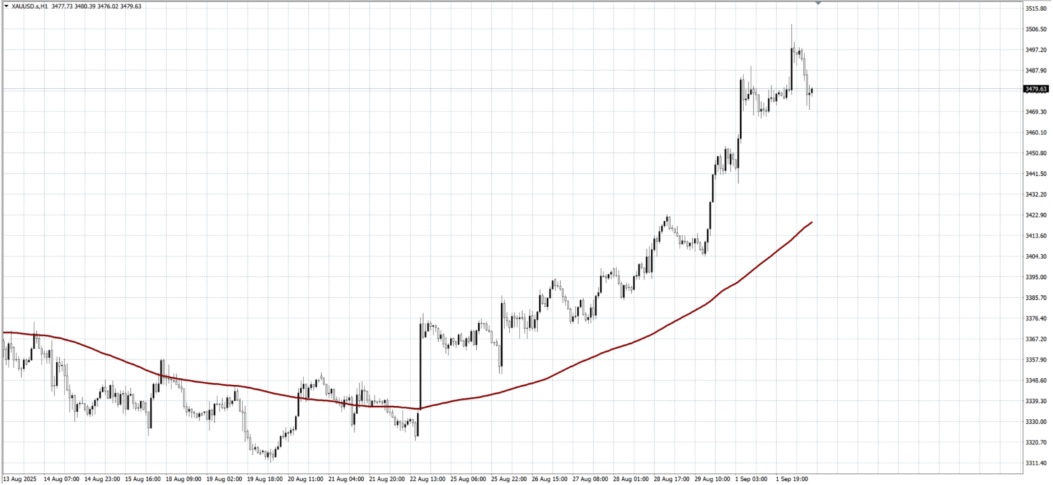
Indicators can be taken off just as easily as they're added. The simplest method is to right-click on the indicator itself and remove it.
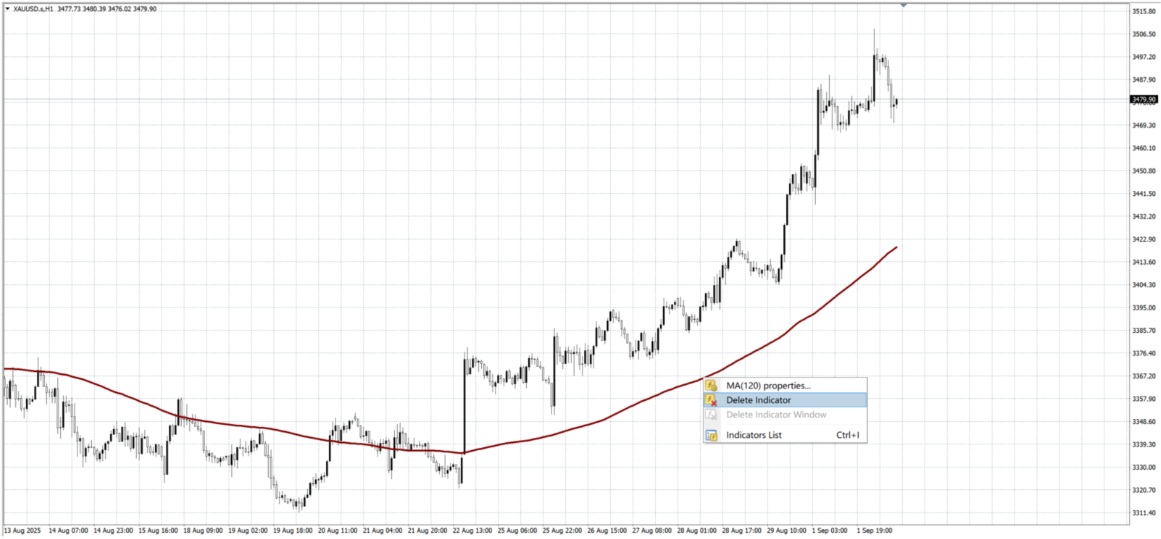
If you'd like to clear several indicators at once, there's a quicker way.
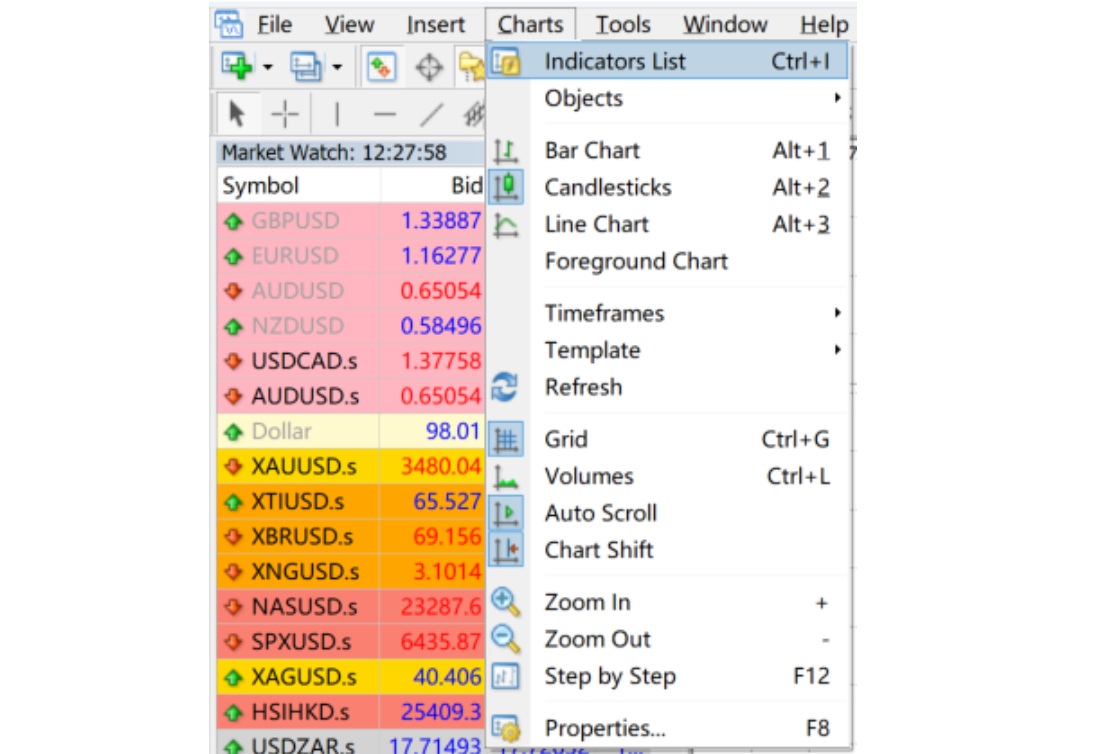
Open the Indicators List and you'll see every indicator currently applied to your candlestick chart. From the menu on the right, you can edit, adjust, or delete them as needed.
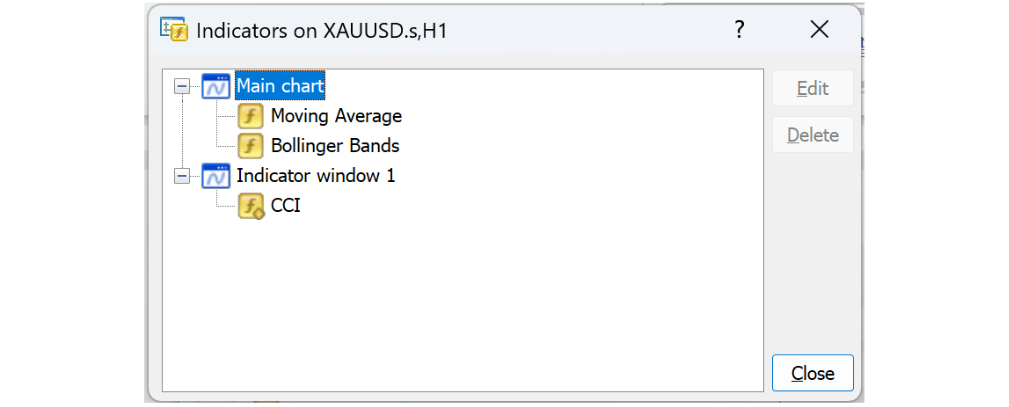
Double-clicking an indicator, such as a moving average, brings up its parameter settings. These can be tailored to suit your trading style.
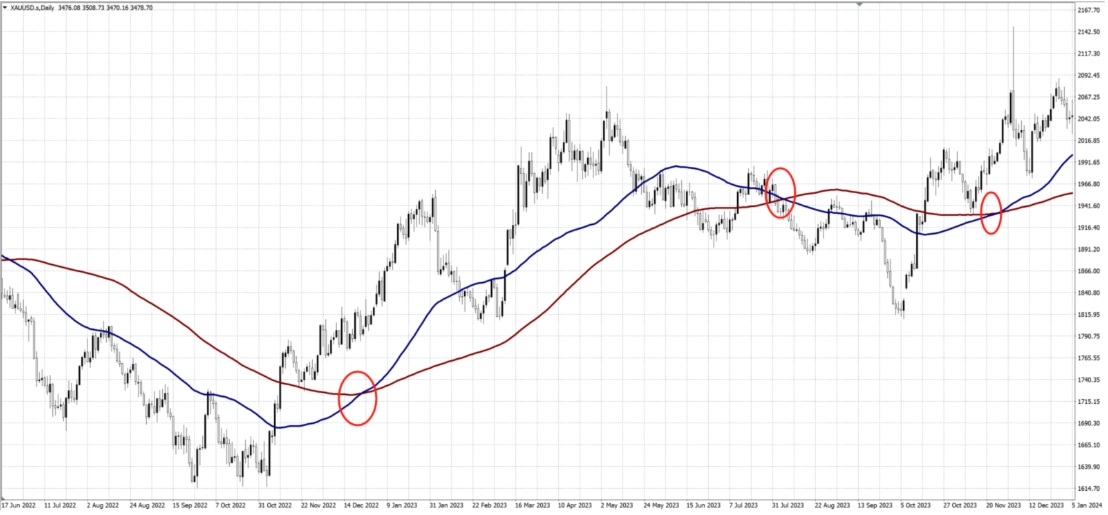
You can also stack multiple indicators on the same chart, which helps in spotting confluence or signal clusters. For example, alongside a 120-day moving average you might add a 60-day line, then watch for crossovers between the two as potential entry points.
MT4 isn't limited to its built-in tools. Thousands of additional indicators can be installed with very little effort.
Take the ADXdon plugin (in .mq4 format) as an example:

Step 1: Open MT4 and click Open Data Folder.
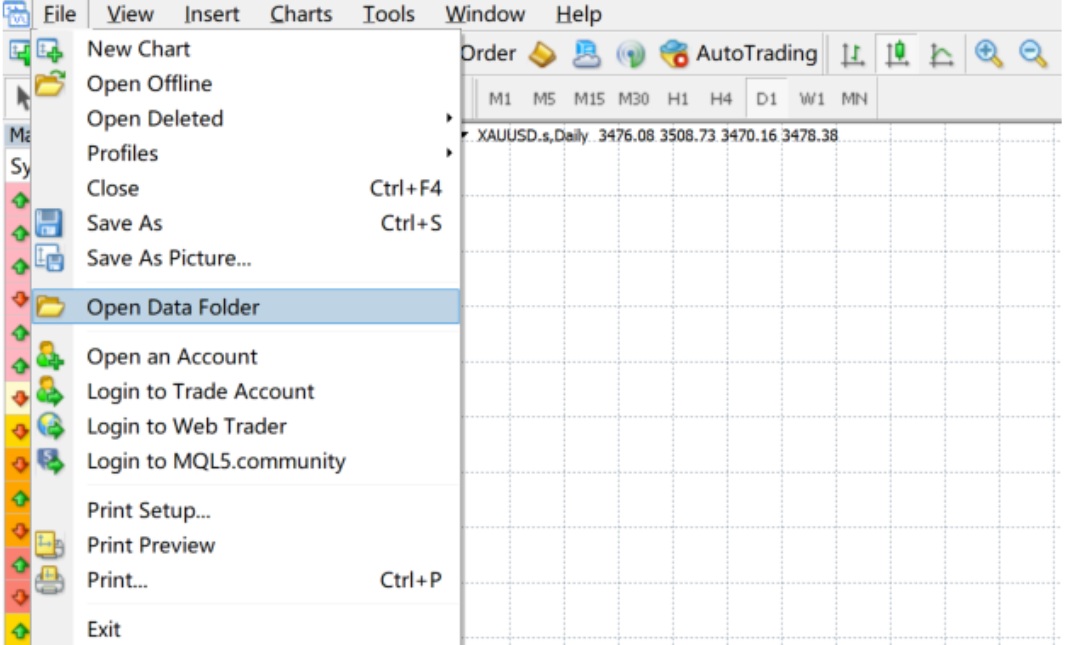
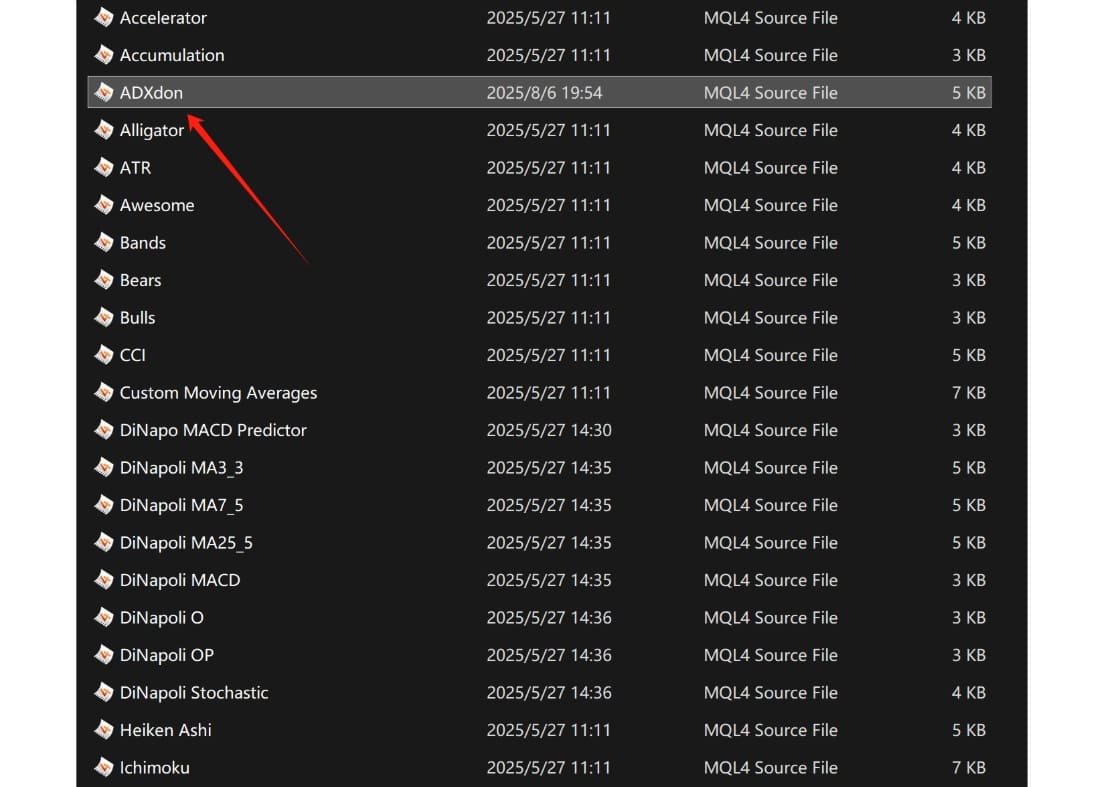
Step 2: Navigate to the MQL4 directory, then into Indicators, and drop the file in.
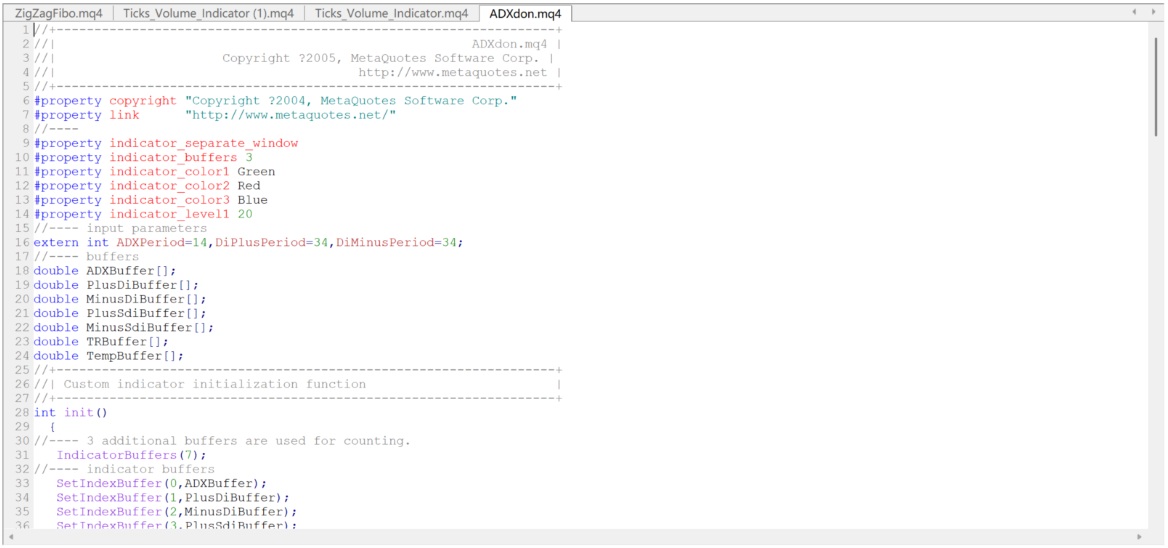
Step 3: Double-clicking the ADXdon file will launch MetaEditor, confirming it has installed correctly.
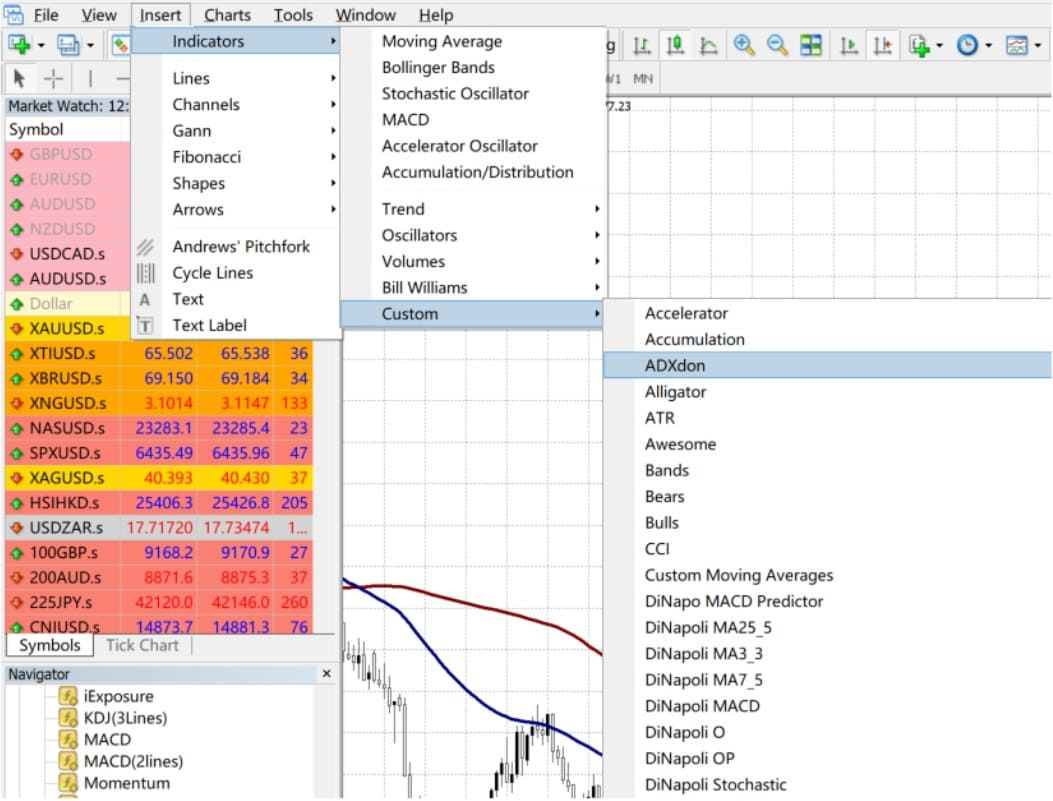
Step 4: Restart MT4. and you'll find ADXdon under Custom Indicators, ready for use.
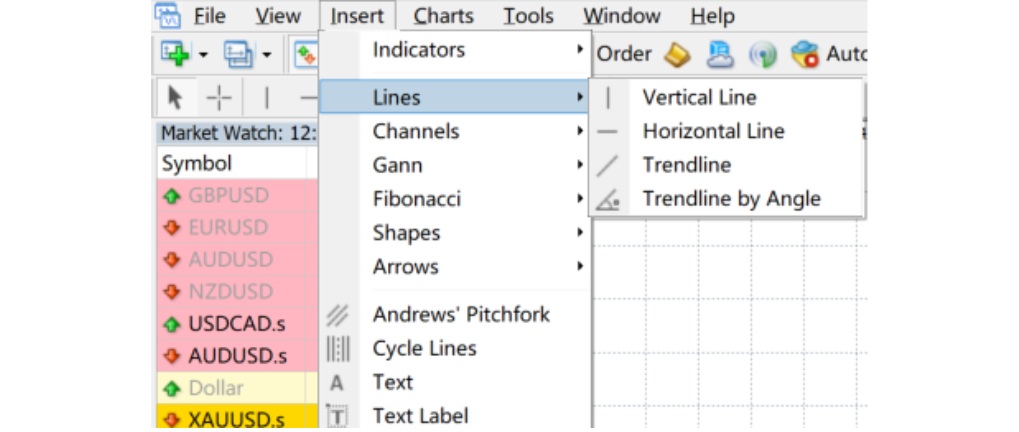
Beyond indicators, the Insert menu also gives you access to drawing tools – from simple trendlines to more advanced features such as Gann studies and Fibonacci retracements.
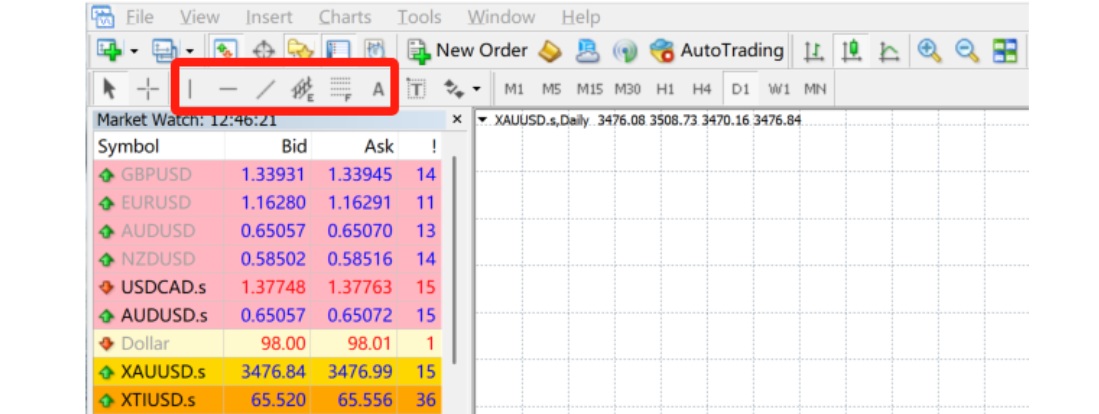
You can also call up tools like resistance lines, Fibonacci levels, or channel lines directly from the third toolbar for quick use.
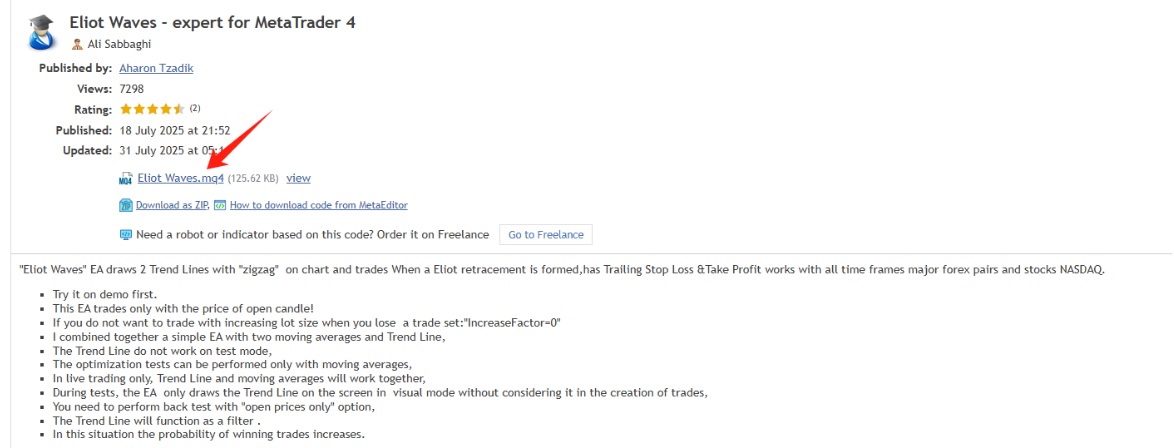
One of MT4's biggest strengths, and a key reason for its global popularity, is its extensive code library. It hosts thousands of ready-made indicators, free to download and apply.
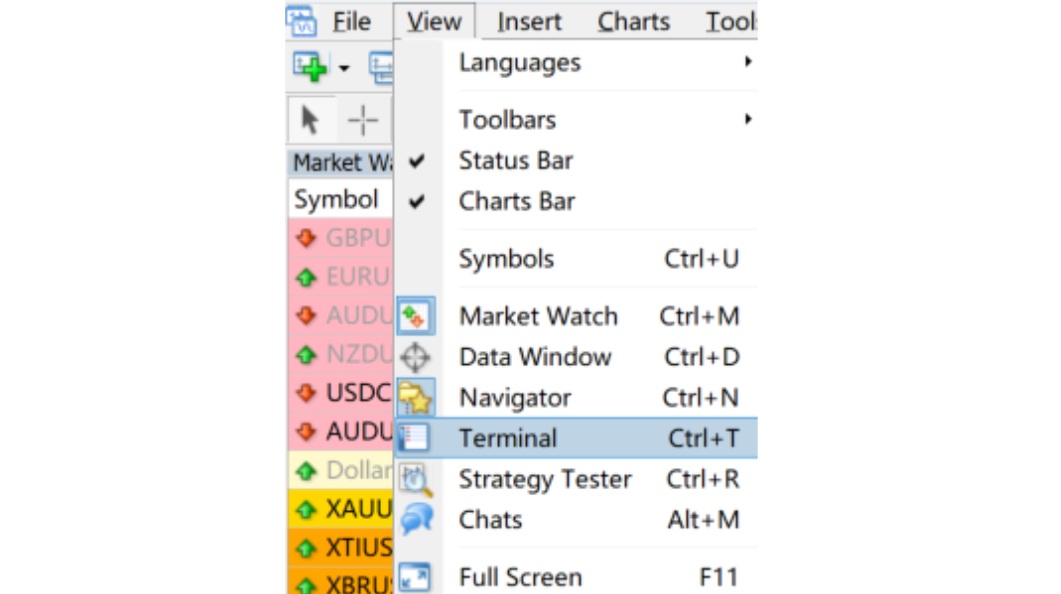
Open the Terminal window and head to the Code Base tab.

Here you'll find a wide choice of indicators. Once you've picked one, a single click downloads the source file. Place it in the Indicators folder within MQL4. install it, and it's good to go.
The Terminal also gives access to features such as account history and Expert Advisors, so you can manage far more than just indicators.
As algorithmic trading continues to grow and new tools emerge, making the most of MT4's analytical functions can help keep your trading both flexible and efficient.
Disclaimer: This material is for general information purposes only and is not intended as (and should not be considered to be) financial, investment or other advice on which reliance should be placed. No opinion given in the material constitutes a recommendation by EBC or the author that any particular investment, security, transaction or investment strategy is suitable for any specific person.
EBC Financial Group is a co-brand shared by a group of entities
including:
EBC Financial Group (SVG) LLC is authorized by the St.Vincent and the
Grenadines Financial Services Authority(SVGFSA),and the company
registration number is 353 LLC 2020, with registered address at Euro
House, Richmond Hill Road, Kingstown, VC0100, St. Vincent and the
Grenadines.
Other Relevant Entities
EBC Financial Group (UK) Limited is authorised and regulated by the
Financial Conduct Authority. Reference Number: 927552. Website: www.ebcfin.co.uk
EBC Financial Group (Cayman) Limited is licensed and regulated by the
Cayman Islands Monetary Authority (Number: 2038223). Website:
www.ebcgroup.ky
EBC Financial (MU) Limited is licensed and regulated by the the
Financial Services Commission, Mauritius (License Number GB24203273)
with registrated address at 3rd Floor, Standard Chartered Tower,
Cybercity, Ebene, 72201, Republic of Mauritius. Website for this entity
is maintained separately.
EBC Financial Group (Comoros) Limited is authorised by The Autonomous
Island of Anjouan, Union of Comoros Offshore Finance Authority with
License number L 15637/EFGC, with registered office address at Hamchako,
Mutsamudu, Autonomous Island of Anjouan, Union of Comoros.
EBC Financial Group (Australia) Pty Ltd (ACN: 619 073 237) is authorised
and regulated by the Australian Securities and Investments Commission
(Number: 500991). EBC Financial Group (Australia) Pty Ltd is a related
entity of EBC Financial Group (SVG) LLC. The two entities are managed
separately. The financial products and services offered on this website
are NOT provided by the Australian entity and no recourse against the
Australian entity is available.
EBC Group (Cyprus) Ltd, faciliates payment services to the licensed and
regulated entities within the EBC Financial Group strucutre, registered
under the Companies Law of Republic of Cyprus with the number HE 449205,
registered office address at 101 Gladstonos, Agathangelou Business
Centre, 3032 Limassol, Cyprus.
Business Address: The Leadenhall Building, 122 Leadenhall Street, London, United Kingdom, EC3V 4AB. Email Address :cs@ebc.com . Telephone : +44 20 3376 9662
Regional Restrictions:
EBC does not offer any services to citizens and residents of certain
jurisdictions including: Afghanistan, Belarus, Burma (Myanmar), Canada,
Central African Republic, Congo, Cuba, Democratic Republic of the Congo,
Eritrea, Haiti, Iran, Iraq, Lebanon, Libya, Malaysia, Mali, North Korea
(Democratic People's Republic of Korea), Russia, Somalia, Sudan, South
Sudan, Syria, Ukraine (including Crimea, Donetsk, and Luhansk Regions),
the United States, Venezuela, and Yemen.
Any Spanish on this website is for LATAM only and is not designated for
anyone in European Union or Spain For more information, please check out
our FAQs.
Any Portuguese on this website is for Africa only, and is not designated
for anyone in European Union or Portugal or Brazil. For more
information, please check out our FAQs.
Compliance Disclosure:The website can be accessed globally and is not specific to any entity. Your actual rights and obligations will be determined based on the entity and jurisdiction that you choose to be regulated.There may be local laws and regulations which prohibit or limit your rights to access, download, distribute, disseminate, share or otherwise use any or all of the documents and information published on this website.
Risk Warning: Trading Contracts for Difference (CFDs) are complex financial instruments and come with a high risk of losing money rapidly due to leverage. Trade on margin carries a high level of risk and may not be suitable for all investors. Before deciding to trade Forex and CFDs, you should carefully consider your trading objectives, level of experience and risk appetite. The possibility exists that you could sustain a loss of some or all of your initial trading capital. We recommend that you seek independent advice and ensure you fully understand the risks involved before making any investment decision. Please read the relevant risk disclosure statements carefully before trading.